Making Your Restaurant Menu Accessible: Ultimate Guide to QR Menus
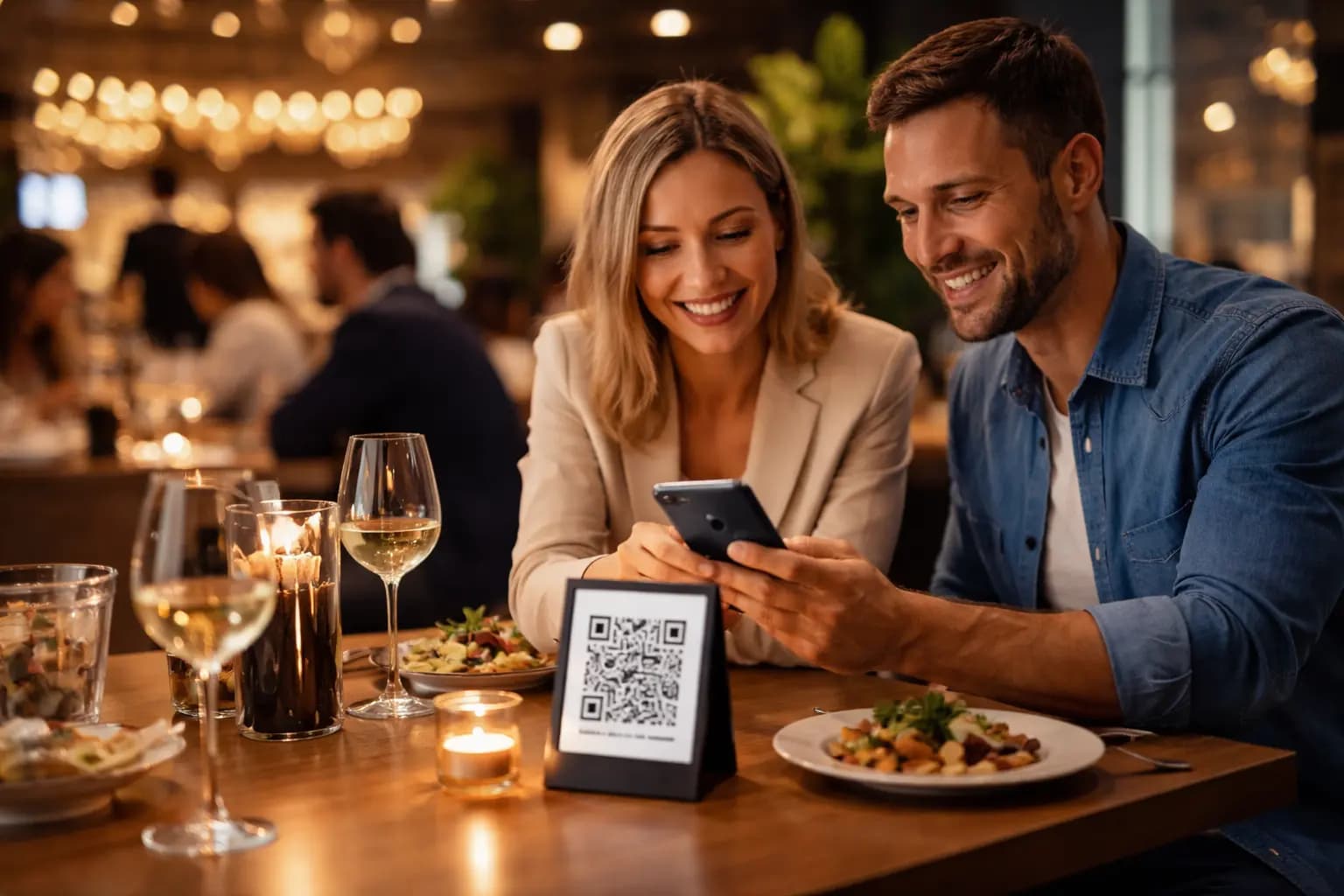
Menus should welcome everyone—yet too many guests still struggle with tiny type, low contrast, and paper menus that are hard to read or impossible to update fast. The fix is not complicated: build an accessible QR menu that loads instantly, stays readable on any phone, and can be improved over time. With QR Menu Generator, you can publish a contactless digital menu in minutes and focus on what matters: a screen reader friendly digital menu experience that helps every guest order with confidence.
Key Takeaways
- Accessibility boosts revenue: readable, inclusive menus reduce friction and increase ordering confidence.
- QR menus improve clarity: better font sizing, contrast, and structure than most paper menus.
- Keep it consistent: clear categories, descriptive item names, and allergen notes help everyone.
- Update instantly: changes to prices, products, and images go live in seconds.
- Start free: publish one branch and scale when you’re ready.
Table of Contents
- Why menu accessibility matters
- What makes a QR menu accessible
- Readable fonts, spacing, and layout
- High contrast options and color choices
- Screen reader compatibility basics
- Menu content structure that helps everyone
- How to set up an accessible QR menu
- Pricing and ROI: accessibility that pays back
- Frequently Asked Questions
Why menu accessibility matters
Accessibility is not a niche feature—it’s hospitality. Guests may have low vision, color-vision differences, dyslexia, cognitive load, shaky hands, or simply a dimly lit table at peak hours. When the menu is hard to read, guests order less, ask more questions, and feel less comfortable.
Making your restaurant menu accessible also helps your team. Clearer menus mean fewer interruptions, fewer mistakes, and more consistent guest experiences. An accessible QR menu best practices approach is both inclusive and practical.
What makes a QR menu accessible
A QR code is just the doorway. Accessibility depends on what happens after the scan: how the menu is structured, how readable it is, and how easily a phone can navigate it. A great QR menu should be:
- Device-friendly: loads cleanly on modern iOS and Android devices.
- Readable: comfortable font sizes, clear hierarchy, and short sections.
- Understandable: descriptive names, consistent categories, and clear allergen notes.
- Maintainable: updates happen fast, without reprinting.
With QR Menu Generator, you can manage categories, products, images, and allergen notifications, and choose from premium themes to support readability and consistency. Learn more about customization and QR capabilities on /features.
Readable fonts, spacing, and layout
Choose fonts built for scanning
Menus are skimmed, not studied. Prioritize clean, legible type and avoid overly decorative fonts for item names and prices. Readability is the foundation of readable fonts for digital restaurant menus.
Use comfortable sizing and breathing room
Small text is the fastest way to lose a guest. Aim for text that reads well at arm’s length and keep line lengths short. Add spacing between items so the menu doesn’t feel like a wall of text.
Keep the hierarchy obvious
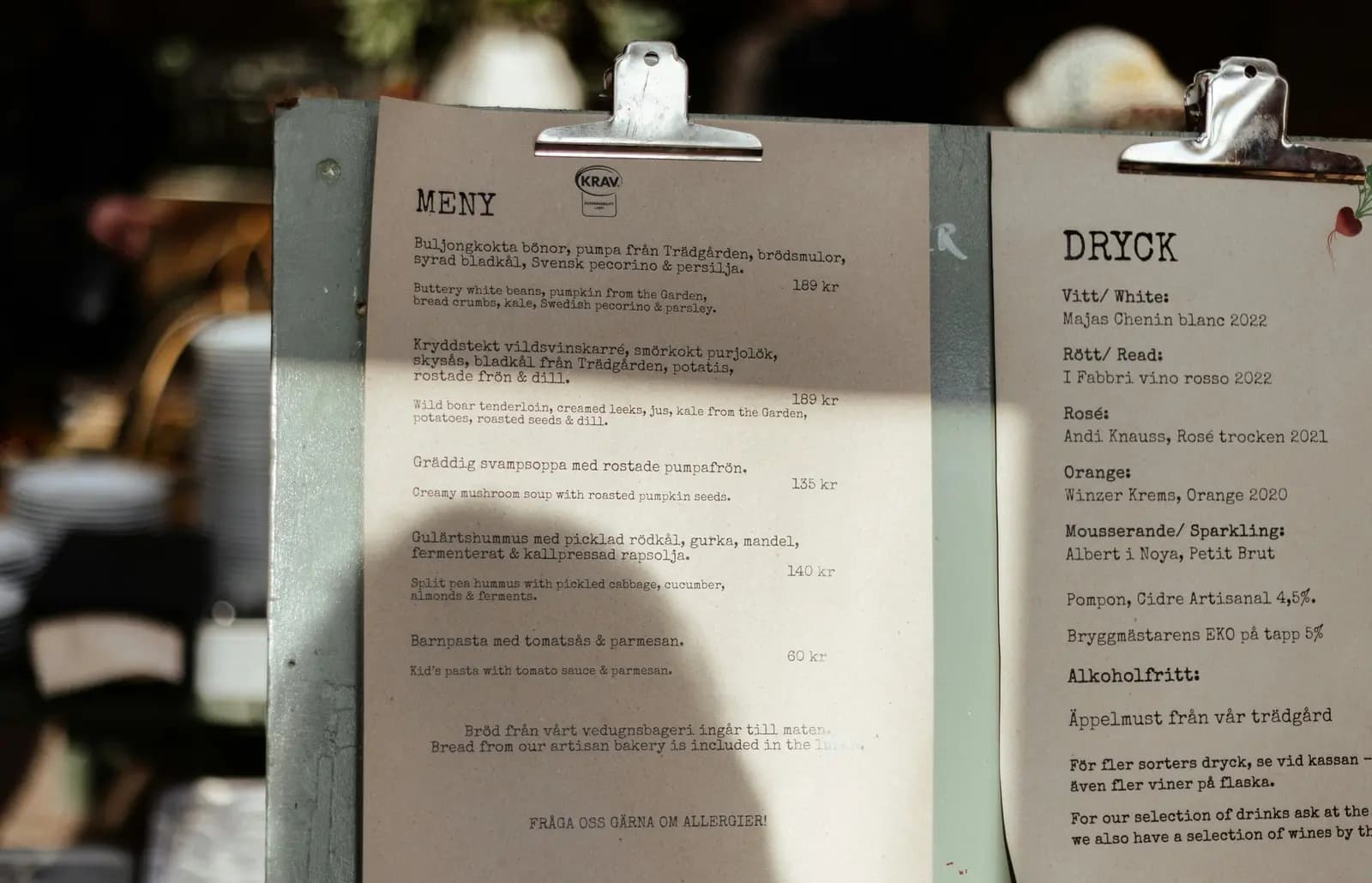
Guests should instantly understand what’s a category, what’s an item, what’s a description, and what’s a price. A strong hierarchy reduces cognitive load and supports a screen reader friendly digital menu structure too.
High contrast options and color choices
Contrast is where many menus fail—especially paper menus with trendy light-gray text or low-contrast backgrounds. For a high contrast restaurant menu QR code experience:
- Use strong contrast: dark text on light backgrounds (or vice versa) beats “aesthetic” gray-on-cream.
- Don’t rely on color alone: indicate spicy, vegan, or specials with text labels/icons plus color.
- Be careful with images: text over photos can reduce legibility. Keep item text on solid backgrounds when possible.
QR Menu Generator includes 6 customizable premium themes (color, font, layout) so you can pick designs that stay readable in real dining conditions. See theme and customization details on /features.
Screen reader compatibility basics
Screen readers help blind and low-vision guests navigate content using spoken output. You don’t need to be a developer to support this—just follow a few rules:
- Use clear category titles: “Starters” beats “Begin.”
- Avoid cryptic item names: “Grilled Chicken Wrap” beats “House Wrap.”
- Write meaningful descriptions: short, plain language helps everyone.
- Add allergen notes consistently: repeat the pattern across items so it’s predictable.
The goal is simple: when a guest scrolls, the menu reads in a logical order and each item makes sense out loud.
Menu content structure that helps everyone
Make categories predictable
Put your menu in an order that matches how people decide: starters, mains, sides, desserts, drinks. Keep naming consistent and avoid mixing meal types in one category.
Use short descriptions and standard labels
Describe what matters: core ingredients, cooking method, spice level, and key allergens. Guests with dietary restrictions benefit immediately—and so do guests who are just indecisive.
Keep pricing clear
Show prices in a consistent format. Confusing pricing creates friction and slows ordering. The best accessible menus remove guesswork.
How to set up an accessible QR menu
- Create your free account: Start in minutes at /register (no credit card required).
- Choose a readable theme: Pick from the premium themes and select high-contrast, legible font options. Explore theme flexibility on /features.
- Build clear categories: Add categories in a logical dining order and keep naming consistent.
- Add items with inclusive descriptions: Use plain language, list key ingredients, and include allergen notifications.
- Upload helpful images: Use images to support understanding, not to replace text. Keep item names and prices fully readable.
- Test on real phones: Check iOS and Android. Increase font sizes if anything feels cramped.
- Monitor performance: Use statistics and analysis to track menu views and popular products, then improve what guests actually use.
Need to scale to multiple locations? Multi-branch support is available for chain restaurants in the Pro Plus package.
Pricing and ROI: accessibility that pays back
Accessible menus are not just “nice”—they reduce confusion, shorten decision time, and support higher-confidence ordering. That often means fewer staff interruptions and smoother table flow. QR Menu Generator makes it easy to start small and upgrade only when value is obvious:
- Free Plan: 1 Branch, 10k monthly views, unlimited products (no credit card required).
- Pro ($9.90/mo): unlimited products, detailed statistics.
- Pro Plus ($17.99/mo): unlimited branches, advanced statistics.
See plan details on /pricing and choose what matches your current stage.
Accessible menus are the quiet superpower of modern hospitality: fewer barriers, faster decisions, and a better experience for every table. Ready to publish your own? Get Started for Free with QR Menu Generator at /register.
Frequently Asked Questions
- What is an accessible QR menu?
- An accessible QR menu is a digital restaurant menu that guests can open by scanning a QR code and comfortably read on their phone. It prioritizes clear structure, readable fonts, and strong contrast so more people—including low-vision guests—can navigate items and information easily.
- How do I get started with QR Menu Generator for free?
- You can start immediately by creating a free account at /register which includes 1 restaurant and 10k monthly views.
- How much does an accessible QR menu cost, and is it worth it?
- You can launch with the Free Plan and pay only when you need deeper analytics or more locations. Pro ($9.90/mo) adds detailed statistics for better decisions, while Pro Plus ($17.99/mo) supports unlimited branches. The ROI typically comes from fewer menu reprints, faster updates, and smoother guest ordering.
- How do QR menus compare to traditional paper menus for accessibility?
- Paper menus often lock you into small fonts and fixed layouts, and they can be difficult for low-vision guests to read in dim lighting. QR menus let guests zoom, view on their preferred device, and benefit from clearer structure. Plus, you can improve contrast, wording, and allergen notes over time without reprinting.
- What are the best steps to implement a high-contrast, readable QR menu?
- First, create your menu account at /register. Next, pick a theme that supports clear fonts and strong contrast, then add structured categories and short descriptions with allergen notes. Upload supportive images, test on both iOS and Android, and use menu statistics to refine what guests view most.
About the author
Evrenus Fırat Polat
Restaurant technology expert and founder of QR Menu Generator. Passionate about helping restaurant owners harness digital tools to grow their business.