How to Create a Contactless QR Menu for Your Restaurant: Ultimate 5-Minute Guide
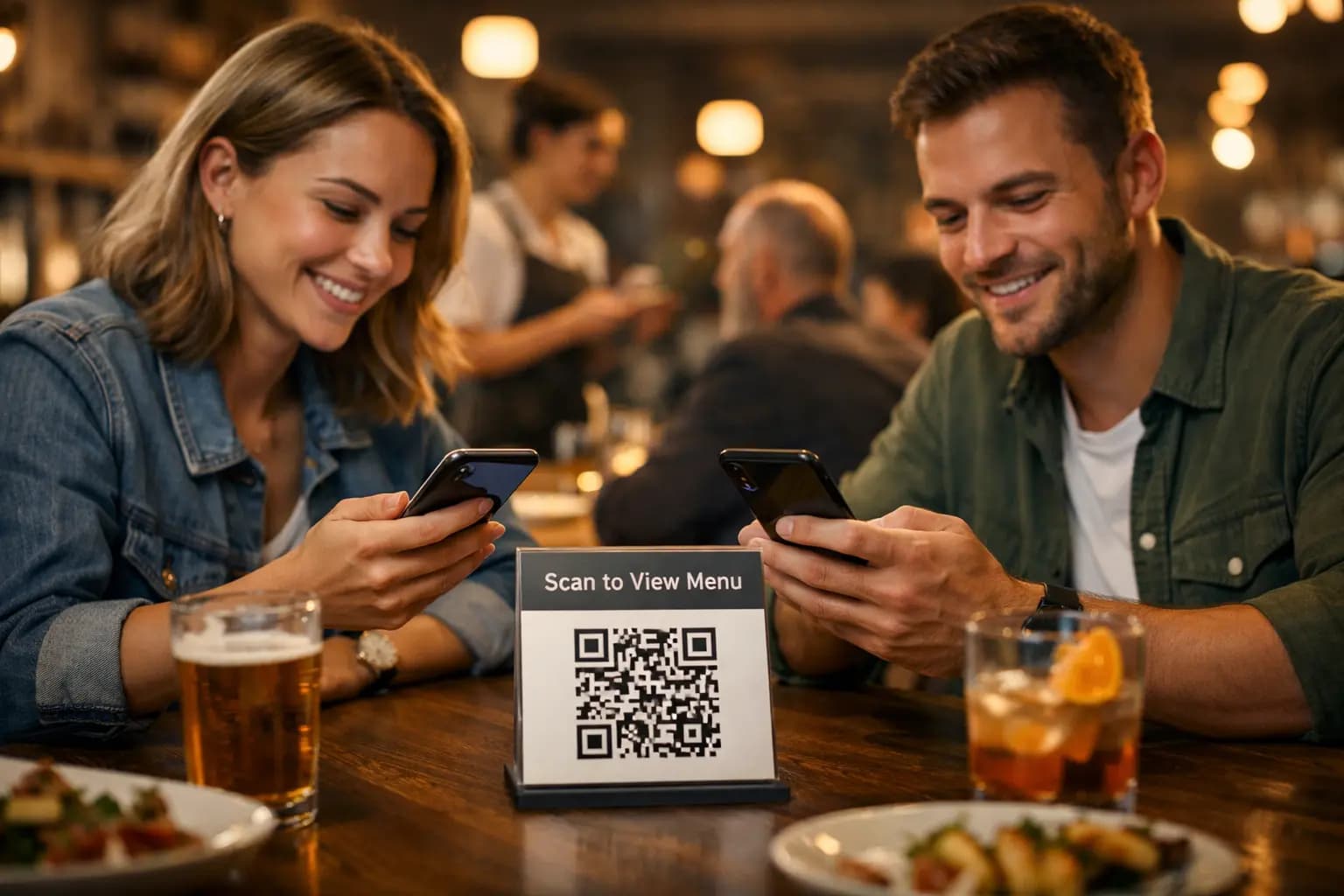
Paper menus get dirty, go out of date, and cost money to reprint. A contactless QR menu fixes this fast: guests scan a code and scan to view menu on their phone—no app needed. You can build one in about 5 minutes with QR Menu Generator. Get Started for Free.
Key Takeaways
- Make a QR menu in minutes: Add categories, products, and images, then share one QR code.
- Instant updates: Change prices or items and it goes live in seconds.
- Works on modern phones: Guests use iOS or Android—no app download.
- Learn what people view: Track menu views and popular products with statistics.
- Scale to multiple locations: Multi-branch support is available in Pro Plus.
Table of Contents
What Is a Contactless QR Menu?
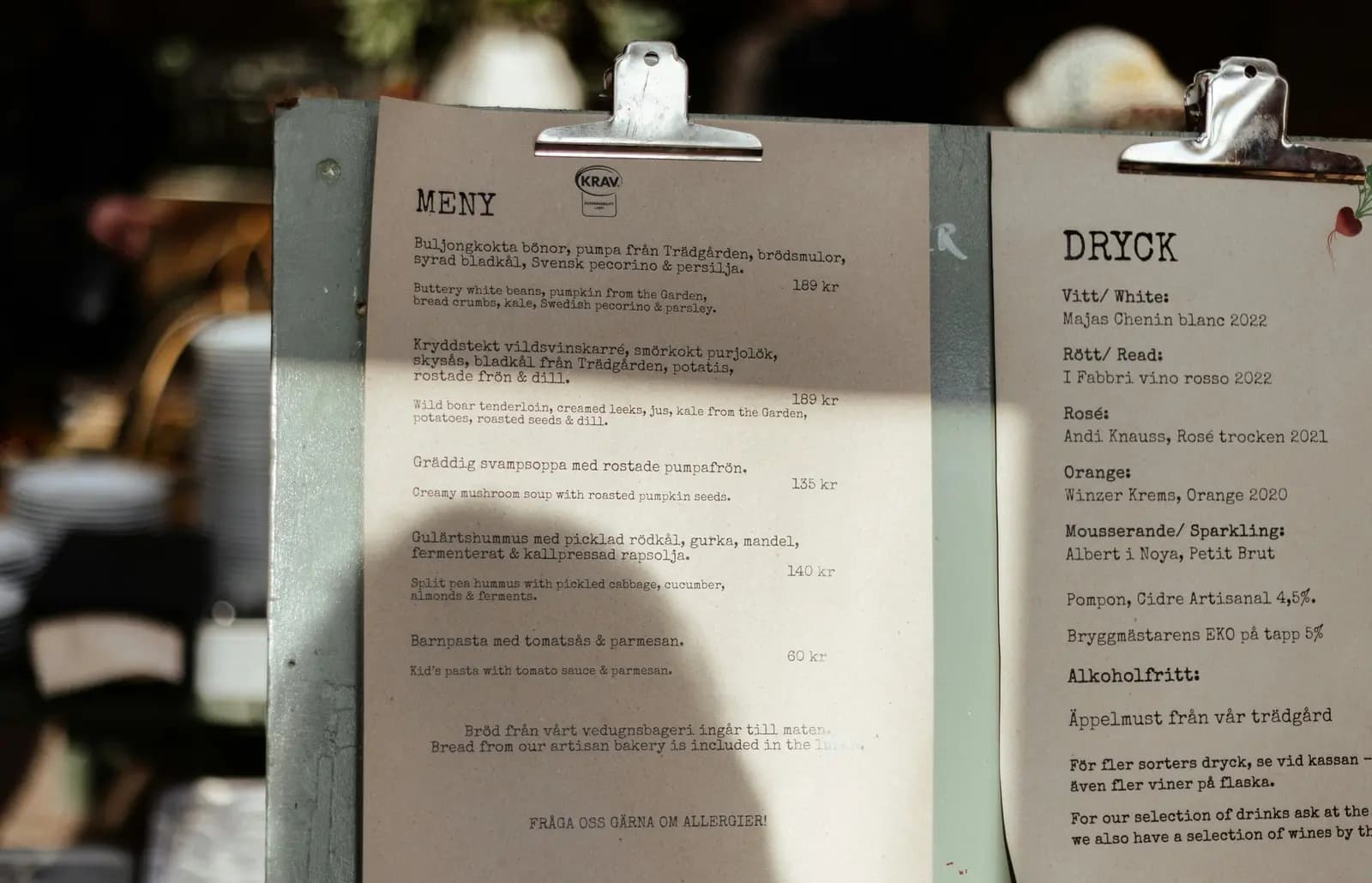
A contactless QR menu is a contactless digital menu that guests open by scanning a QR code with their phone camera. It is a simple “scan to view menu” experience: no app download, no waiting, and no paper menus on the table.
Why It Matters for Restaurants
Restaurants, cafes, bars, hotels, beach businesses, and food trucks all have the same problem: menus change. Prices change. Photos change. Seasonal items come and go.
With a digital menu creator, you can update your menu in seconds and stop reprinting.
1) Faster service and fewer questions
When guests can quickly scan to view menu, they decide faster. Clear categories and photos help people understand items without calling staff over for every detail.
2) Better hygiene and less wear-and-tear
Paper menus get touched all day. A contactless digital menu reduces shared contact and keeps tables cleaner.
3) Learn what guests actually look at
Menu analytics matter. Statistics show menu views and popular products, so you can improve layout and highlight the right items.
How to Create a Contactless QR Menu in 5 Minutes (Step-by-Step)
This step-by-step guide is written to match “How-To” structure, so you can follow it quickly.
Step 1: Create your free account (30 seconds)
Go to /register and create your account. The Free Plan includes 1 branch, 10k monthly views, and unlimited products with no credit card required.
Step 2: Add your restaurant and basic details (45 seconds)
Name your menu (example: “Main Menu” or “Beach Bar Menu”). This helps you stay organized if you run more than one menu.
Step 3: Create categories (60 seconds)
Add simple categories like:
- Starters
- Mains
- Desserts
- Drinks
Keep category names short so they look good on phones.
Step 4: Add products, prices, photos, and allergen notes (2 minutes)
Now fill your items. For each product, add:
- Name (clear and simple)
- Price (easy to read)
- Description (1–2 short lines)
- Image (helps guests choose faster)
- Allergen notifications (important for trust and safety)
This is where a strong digital menu creator for restaurants saves you time, because you can edit anything later and updates go live in seconds.
Step 5: Choose a premium theme and customize (30–45 seconds)
Pick one of the 6 premium themes and adjust color, font, and layout to match your brand. You can see more about customization and QR menu tools on /features.
Step 6: Share your QR code and test it (30 seconds)
Place the QR code on the table, bar, front desk, or a small sign. Then test it with two phones (iOS and Android) to be sure the “scan to view menu” flow feels smooth.
Best Practices That Increase Menu Views
Use clear photos for top sellers
Start with 10–15 best-selling items. Photos help guests choose quickly, and can reduce back-and-forth questions.
Keep the first screen simple
Phones are small. Put your best categories near the top, and avoid long paragraphs.
Update prices the same day they change
The biggest win of a contactless QR menu is instant updates. If prices change, update the menu immediately so staff don’t have to explain differences.
Check your statistics weekly
Look at what gets viewed most. If a category gets low views, rename it, move it up, or improve photos. QR Menu Generator includes statistics and analysis. Pro plans also offer more detailed insights—see /pricing.
Common Mistakes to Avoid
Making categories too complicated
If guests can’t find “Drinks” quickly, they get annoyed. Keep it simple.
Uploading blurry images
Blurry photos make food look worse. Use bright, clean images.
Forgetting allergen notifications
Allergen notes build trust. They also help guests feel safe choosing items.
Not planning for growth
If you are a chain restaurant, multi-branch support is available in the Pro Plus package. Start small, then scale when needed.
Quick note: QR Menu Generator is built for menu viewing. It does not provide online ordering, payments, POS integration, or order-from-table features.
Paper menus are slow. A contactless QR menu is fast, clean, and easy to update. Build yours today with a trusted digital menu creator, then let guests scan to view menu in seconds. Get Started for Free and publish your first contactless digital menu in minutes.
Frequently Asked Questions
- What is a contactless QR menu?
- A contactless QR menu is a digital menu guests open by scanning a QR code with their phone camera. It lets people scan to view menu with no app download, and restaurant owners can update items, prices, and photos in seconds.
- How can I get started for free with QR Menu Generator?
- You can start immediately by creating a free account at /register which includes 1 restaurant and 10k monthly views.
- How much does a QR menu cost and is it worth it?
- Costs can be low compared to printing paper menus again and again. QR Menu Generator offers a Free Plan with 1 branch, 10k monthly views, and unlimited products. If you want deeper insights, Pro is $9.90/mo for detailed statistics, and Pro Plus is $17.99/mo for unlimited branches and advanced statistics, which can pay back quickly by saving time and reducing reprint costs.
- Why is a digital QR menu better than paper menus?
- Paper menus get outdated, tear, and need reprinting when prices change. A digital QR menu stays clean and current, works on modern phones, and lets guests scan to view menu instantly. You can update items in seconds and use statistics to learn what people view most.
- How do I set up and place QR codes in my restaurant?
- First, create your menu and publish it. Next, download or print your QR code and place it on tables, the bar, and near the entrance. Test it with an iPhone and an Android phone, and make sure the link opens fast. If needed, adjust your menu theme and layout so it reads well on mobile.
About the author
Evrenus Fırat Polat
Restaurant technology expert and founder of QR Menu Generator. Passionate about helping restaurant owners harness digital tools to grow their business.